
Switching from Zen
Bring your bookmarks to Dawn in one click. Zen stays exactly as it was.
Download for MacFree for Mac. Coming soon.
Switch me from Zen to Dawn and bring my tabs along. Here’s how: https://dawn.example/llms.txt
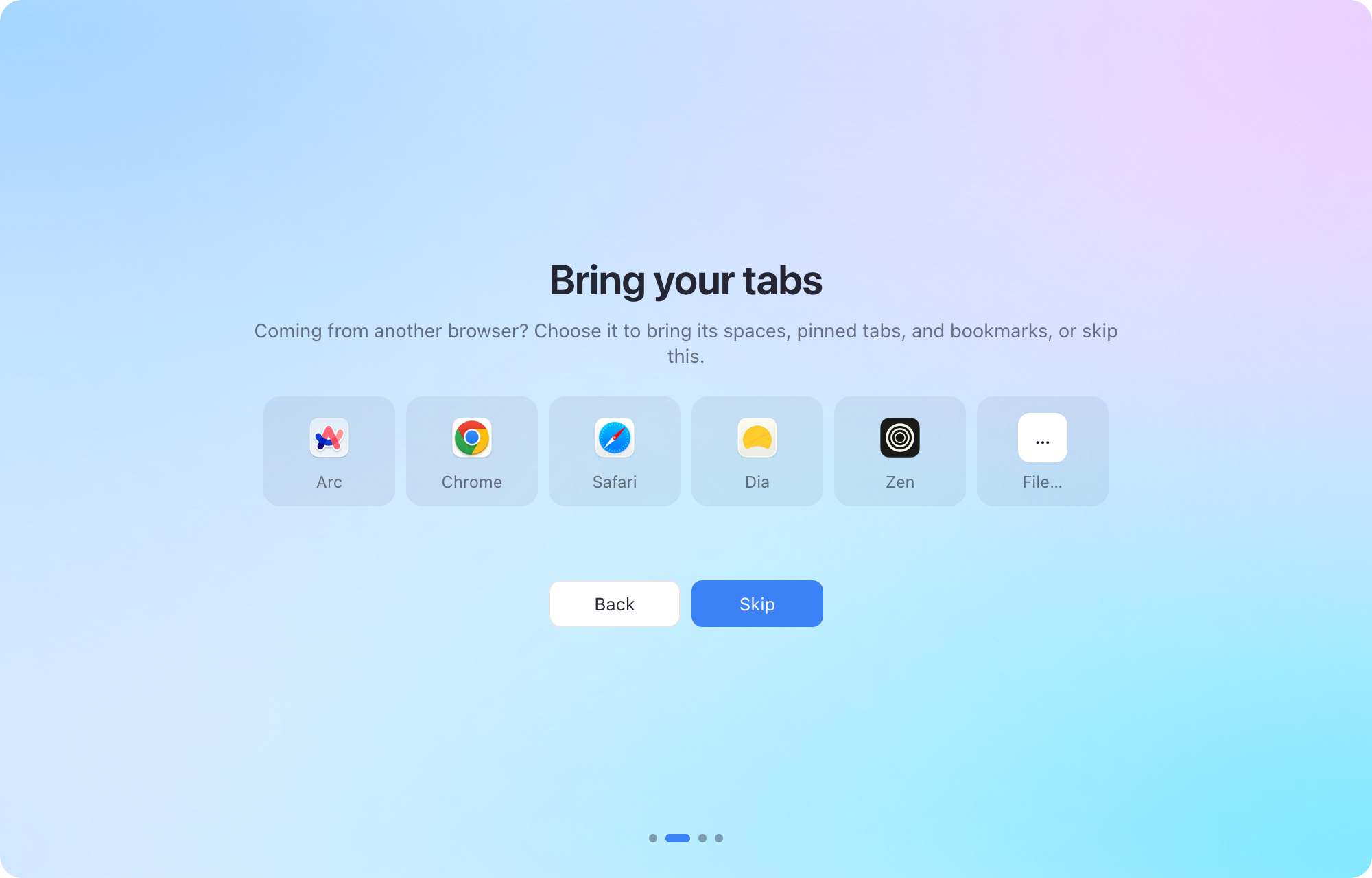
Move to Dawn in a minute
Get Dawn
Download Dawn for Mac and open it.
Choose Zen
When Dawn opens, choose Zen on the Bring your tabs screen, then Import. Later, it’s in Settings › Import.
That’s it
Your bookmarks arrive as pinned tabs in a new space, “Zen import” (one for each Zen profile). Merge it into another space in Settings › Profiles if you like.
Or let your AI agent do it
Paste this into Claude, ChatGPT, or any agent that can use your Mac. It does the rest.
Switch me from Zen to Dawn and bring my tabs along. Here’s how: https://dawn.example/llms.txt
Questions about switching from Zen
What comes over from Zen?
Your bookmarks, from the Zen profile you used last. Dawn doesn’t read Zen’s spaces and pinned tabs yet, so bookmark them first if you want them in Dawn.
Is Dawn free?
Yes. Dawn is free, with no account to make.
Does anything change in Zen?
No. Dawn only reads Zen’s files; everything there stays as it was.
Can my AI agent switch me over?
Yes. Give it the prompt above. It follows Dawn’s steps for agents to install Dawn, bring your tabs over, and tell you what it added.